
Setting up your university email on a smartphone is not just about entering an address and a password. The infrastructure of INSA Rouen relies on protocols and an authentication portal that require precise settings; otherwise, synchronization fails silently. This article details the technical parameters to master in order to receive your INSA Rouen emails on mobile without connection errors.
IMAP, POP, or Exchange: which protocol for INSA Rouen webmail on mobile
The choice of protocol determines everything else in the configuration. Several options appear when adding an account on Android or iOS, and not all are compatible with the INSA Rouen infrastructure.
| Protocol | Multi-device synchronization | Recommended port | Compatible with INSA Rouen |
|---|---|---|---|
| IMAP (SSL/TLS) | Yes | 993 | Yes (recommended) |
| POP3 | No | 995 | Partial |
| Exchange / Office 365 | Yes | 443 | Not guaranteed |
Encrypted IMAP via port 993 in SSL/TLS is the only mode that retains read status, folders, and drafts synchronized between the phone, computer, and SOGo webmail. POP3 downloads messages without synchronizing them: an email read on mobile remains marked as unread on the web interface.
Automatic detections of Exchange or Office 365 do not match the INSA Rouen infrastructure and regularly cause synchronization errors. Manual configuration in IMAP remains the most reliable method on both Android and iPhone.
To access INSA Rouen email without encountering these pitfalls, you must disable automatic detection right from the first setup screen and manually select the IMAP account type.
Manual configuration on Android and iOS: servers and parameters for INSA Rouen
The procedure differs slightly between the two systems, but the server parameters remain the same. INSA Rouen webmail is accessible via sogo.insa-rouen.fr from a mobile browser, and the mail servers follow the same naming logic.
Server parameters to fill in
- Email address: [email protected] (standard format assigned to each member of the institution)
- IMAP incoming server: INSA Rouen’s mail server, with port 993 and SSL/TLS encryption enabled
- SMTP outgoing server: same domain, with STARTTLS encryption and the port dedicated to secure sending
- Username: the usual username used for CAS login, not the full email address
On Android (Gmail app or third-party client), you need to choose “Other” when adding the account, then select IMAP. On iOS (native Mail app), the path goes through Settings, Mail, Accounts, then “Other Mail Account.”
In both cases, the username is not the full email address but the short login used on the INSA CAS portal. Confusing the two generates an authentication error that does not always produce an explicit message.
Common errors on first login
The most common trap concerns automatic detection. When entering an address in insa-rouen.fr, some mail clients spontaneously suggest an Exchange or Office 365 configuration. Accepting this suggestion leads to a silent failure: the application appears to connect, but no messages appear.
Another point of friction is the password. If authentication fails after entering the correct IMAP parameters, the problem often lies with the unified identity portal of Normandie Université. Since 2024, access to academic webmail is gradually transitioning through this portal, which changes the login process compared to simple local credentials.
CAS portal and Normandie Université authentication on mobile
The CAS login page for INSA Rouen (cas.insa-rouen.fr) displays an explicit warning against phishing attempts. This vigilance is justified: campaigns of fake login screens regularly target higher education institutions.
On mobile, checking that the URL starts with https://cas.insa-rouen.fr before entering your credentials is a non-negotiable precaution. Mobile browsers sometimes truncate the address bar, making verification less instinctive than on a computer.
The unified authentication of Normandie Université also changes the game for third-party applications. A mail client configured with standard IMAP directly uses the login and password. However, if you go through the SOGo webmail in a mobile browser, the connection passes through the CAS portal, with an additional redirection.
SOGo in the mobile browser or dedicated app: what to choose
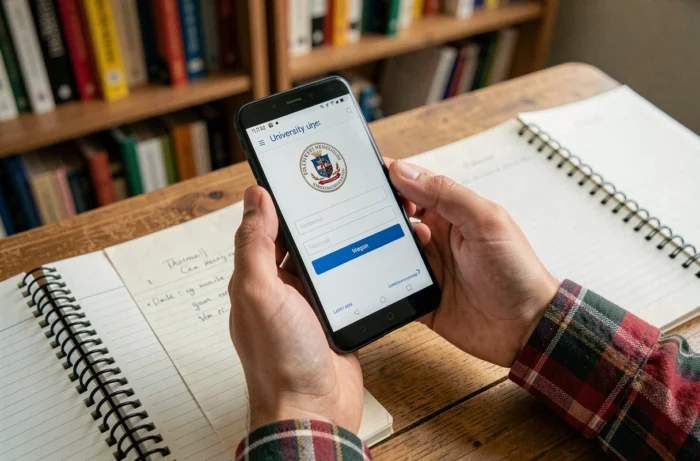
Two approaches coexist for checking INSA Rouen emails on a smartphone: access via the browser (sogo.insa-rouen.fr) or configuring a native mail client.
The SOGo webmail in a mobile browser offers the complete interface: calendar, address books, message filters. The downside is the lack of push notifications. You have to open the browser and refresh the page to see new messages.
A native mail client (Gmail, iOS Mail, Thunderbird Mobile) configured in IMAP sends real-time notifications for each new message. The trade-off is an interface limited to emails only, without direct access to the SOGo calendar.
For daily use by students or staff, the most effective combination remains the native IMAP client for notifications and a shortcut to SOGo in the browser for advanced functions (folder management, auto-reply, calendar sharing).
The email address in the format [email protected] works identically in both cases. The choice mainly depends on the frequency of checking and the need for responsiveness to incoming messages.