Linux on a touchscreen tablet does not refer to a single operation. Depending on the hardware (ARM or x86 processor, locked or unlocked bootloader), the method changes radically: native installation replacing Android, running in a container without touching the system, or flashing a dedicated mobile system like Ubuntu Touch. Understanding these distinctions prevents formatting a tablet unnecessarily.
ARM or x86 Processor: The Determining Factor
The vast majority of Android tablets feature an ARM processor (Qualcomm Snapdragon, MediaTek, Samsung Exynos). Traditional Linux distributions (Debian, Ubuntu Desktop, Fedora) are compiled for the x86 architecture, which is used by PCs. Installing one of these distributions on an ARM tablet without specific porting is simply impossible.
Some tablets use an x86 processor (certain convertible Windows models). On these, a standard Linux distribution can boot from a USB drive, just like on a laptop. However, this case remains minority.
For ARM tablets, three options exist: container applications like UserLAnd, the postmarketOS project (which aims for native support of certain devices), and Ubuntu Touch. Before downloading Linux on a tablet, checking the processor architecture in the system settings (“About tablet”) is the first step.
UserLAnd on Android Tablet: Linux Without Flashing the System
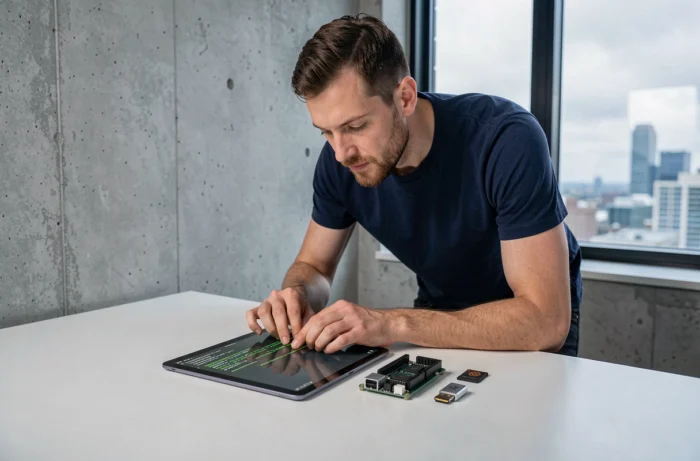
UserLAnd runs Linux in a container, without modifying Android, without rooting, without unlocking the bootloader. The application, available on the Play Store and F-Droid, installs a Linux user space (Ubuntu, Debian, Arch) that runs alongside the Android system.
The principle: UserLAnd downloads a minimal filesystem, then opens a session via a terminal or a graphical server (VNC). The Linux desktop display appears in a VNC viewer application on the tablet.
Free Version and Pro Version
The free version allows running a terminal and an X server. Setting up a complete graphical desktop with this version requires manual manipulations that discourage most beginners. The Pro version, charged at a few euros, significantly simplifies the process by automating the desktop installation.
- Available distributions: Ubuntu, Debian, Arch Linux, Alpine, among others
- Available graphical interfaces: XFCE, LXDE, or simple terminal
- No modification of the Android system, reversible at any time by uninstalling the application
The main limitation remains performance. The Linux desktop runs in an abstraction layer, not directly on the hardware. On an entry-level tablet, response times can be long. On a recent model with sufficient RAM, the experience remains smooth for office tasks, terminal use, or text editing.
Ubuntu Touch OTA 2.0: A Real Mobile Linux System for Tablets
Ubuntu Touch represents a different approach. Instead of running Linux on top of Android, Ubuntu Touch completely replaces the operating system. The tablet boots directly into a touch interface called Lomiri, designed for mobile screens.
Since summer 2026, Ubuntu Touch OTA 2.0 is based on Ubuntu 24.04 LTS. This version brings concrete improvements for daily tablet use:
- Morph browser integrating the Chromium 134 engine, compatible with modern websites and complex web applications
- Widevine installer allowing playback of DRM-protected video content (Netflix, Disney+, and other streaming services)
- Editing screenshots directly from the Lomiri interface (cropping, rotation, color adjustments)
- Native print support added
The major issue: the list of officially supported devices remains very limited. Each tablet requires specific driver porting, and only a few models (mainly Google Nexus/Pixel devices, some OnePlus, Fairphone, Vollaphone) benefit from stable support. Before attempting installation, checking the official list of devices on the UBports website is necessary.
PostmarketOS and Native Flashing: For Samsung Tablets and Beyond
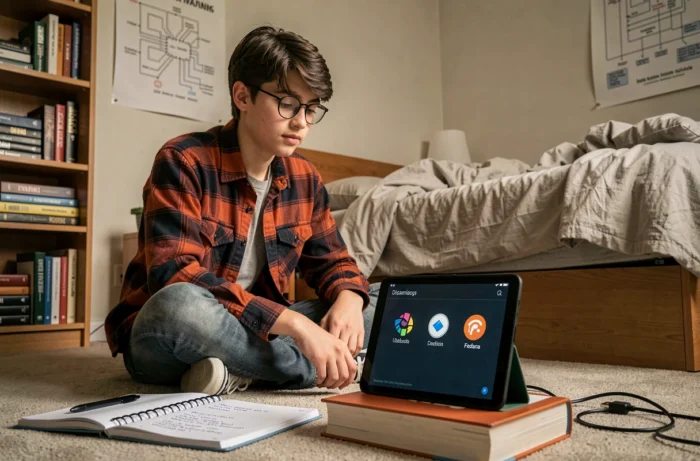
PostmarketOS aims to provide a native Linux on mobile devices, including tablets. The project maintains ports for several Samsung Galaxy Tab models, among others. Installation involves a complete flashing via a dedicated tool (pmbootstrap), which replaces Android with a suitable Alpine Linux system.
Recurring Hardware Constraints on ARM Tablets
On Samsung tablets in particular, community feedback reports frequent limitations: non-functional camera, absent sound, inoperative brightness adjustment, degraded battery life. The XFCE graphical interface often remains the only viable option, as heavier environments like Phosh or GNOME cause slowdowns or crashes on older hardware.
PostmarketOS is suitable for experimental use, not for daily replacement of Android. For a beginner who simply wants to use GNU tools (terminal, text editor, LaTeX), UserLAnd on Android remains the least risky path.
Which Path to Choose Based on Your Tablet and Goal
The choice depends on two criteria: the tablet model and the acceptable level of modification. An x86 tablet (certain convertible Windows models) allows a classic Linux installation from a bootable USB drive, like a PC. A recent ARM Android tablet works well with UserLAnd for container use without risk.
Ubuntu Touch becomes relevant only if the tablet is on the list of devices supported by UBports. PostmarketOS is aimed at users willing to accept partial hardware support and contribute to bug reports.
None of these methods turn an Android tablet into a complete Linux PC. Proprietary drivers, locked bootloaders, and the specifics of each manufacturer systematically limit the experience. Keeping this reality in mind before starting prevents disappointments after several hours of manipulation.